macOS menu bar app
Assume Keycloaker
Keeps your AWS sessions alive like a VPN client, and shows at a glance whether you can actually work.
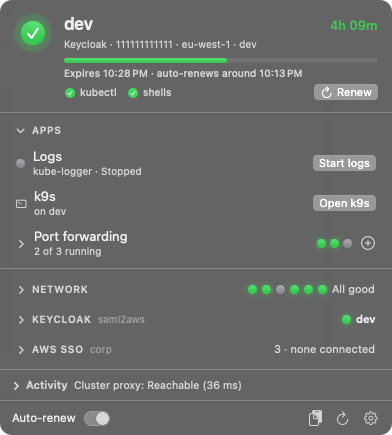
Assume Keycloaker lives in the menu bar. It signs you in, renews sessions before they expire, reconnects after sleep, and tells you whether you can actually work: session time left, and the network checks your team cares about. Picking an environment points kubectl (and, if you like, your terminals) at the right cluster.
The app itself is generic. Everything specific to your team (accounts, clusters, identity provider, which checks matter) comes from a team config that's shared encrypted. Ask a teammate for an invite.
- Session time left, and a light for each requirement
- One-click renew; kept-alive sessions renew themselves
- Start / stop Kube Logger and open k9s on the active cluster
- Port forwards you find by searching the cluster, keep running and open in a click
- A snippets drawer for the commands you keep typing, with variables
- Updates itself through Homebrew
Needs an Apple silicon Mac with macOS 15 or later. Screenshots use made-up environments and accounts.
Step 1
Install
brew install --cask gtalmor/tap/assume-keycloakerHomebrew also installs the command-line tools it needs. k9s and kube-logger-agent are optional extras the app picks up when they're there. Open Assume Keycloaker from Applications: Settings opens by itself the first time.
Step 2
Join your team
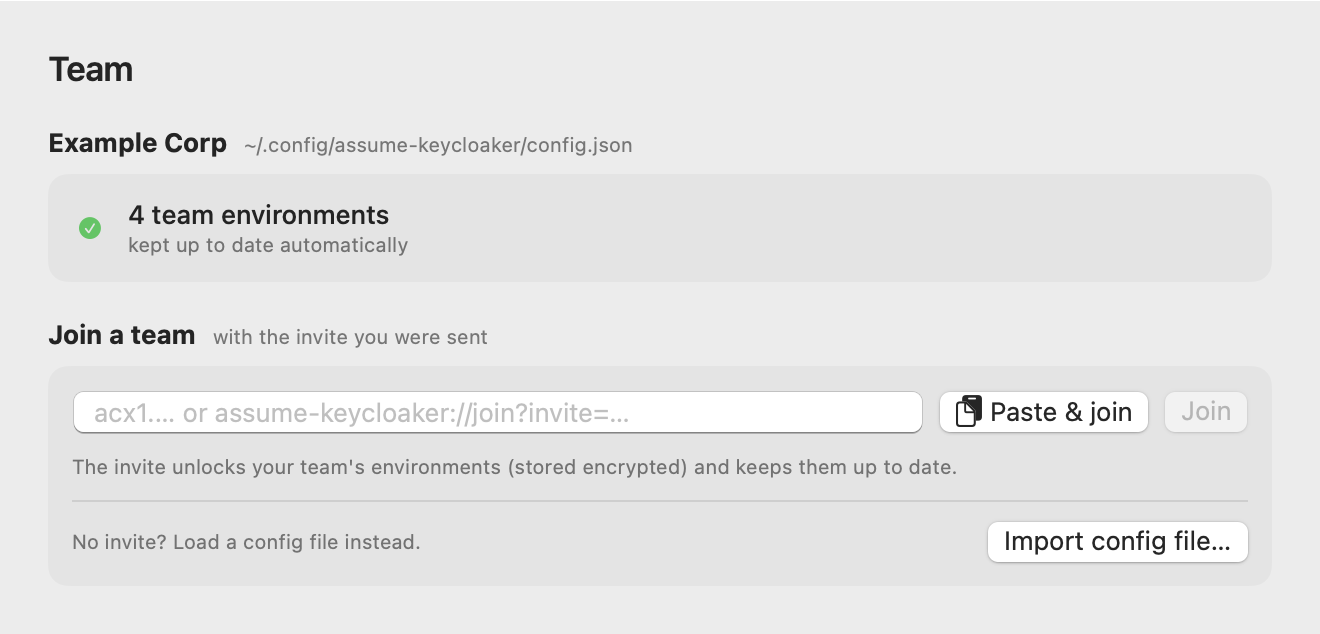
Paste the invite a teammate sent you (acx…), or click their assume-keycloaker://join?… link. The app downloads the team's encrypted config, keeps the key in your login keychain and checks for changes every hour.
If the invite also carries some of your teammate's setup (snippets, environments, preferences), the app asks before adding any of it, and never replaces what you already have.
An invite unlocks the team's config: share it only inside the team, never in public channels.
Step 3
Account and one-time codes
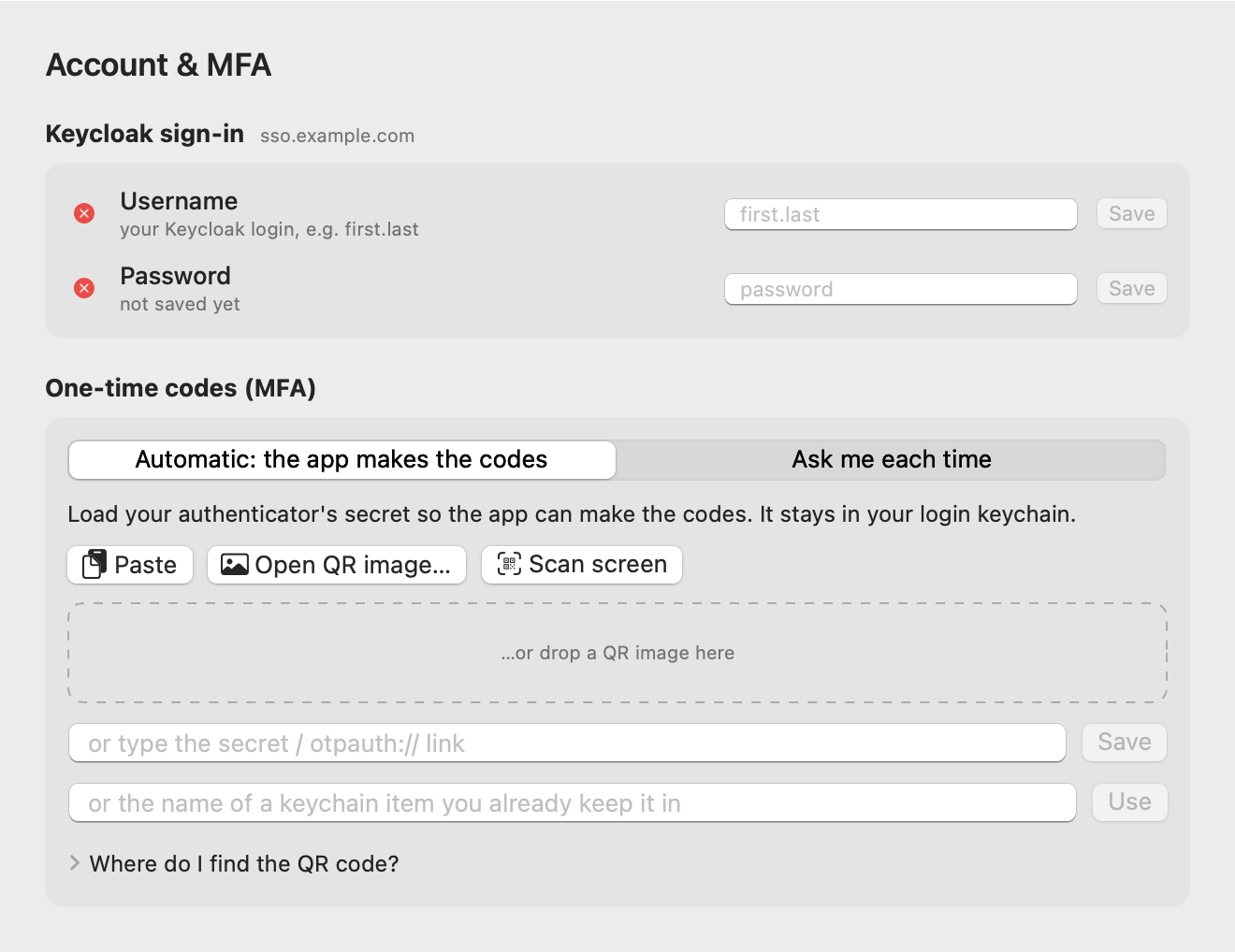
If your team's sign-in uses a username, password and one-time codes, enter them here, then load your authenticator's secret so renewals happen without you: paste it, open or drop the QR image, scan the screen, or point at a keychain item you already keep it in. Prefer typing codes? Choose Ask me each time.
Everything goes to your login keychain: nothing ends up in shell files or on a command line.
Step 4
Check the rest
- AWS profiles fills in what's missing from
~/.aws/config, after a backup. Existing sections are never changed. - Tools & updates installs or upgrades the command-line tools with one click.
- Network & security shows the network checks your team turned on.
The sidebar marks each part green once it's ready.
Day to day
- Click an environment to connect and make it active: kubectl context, the shared profile's region, and terminals that follow (optional). Production environments ask first.
- Kept alive (the pin): renewed 15 minutes before it expires, and reconnected after sleep or when the network comes back. Renew in the header gets a fresh session now.
- Apps, at the top of the panel, holds Logs, k9s and your port forwards.
- Start logs runs
kube-logger-agentin the background and opens your Kube Logger viewer; Stop ends it. - Open k9s appears while k9s can connect (signed in, network checks green) and opens it on the active cluster in a new Terminal window.
- Right-click the menu bar icon for a quick switcher, logs, Open k9s (
⌘K), your snippets, your port forwards and Renew.
| Light | Meaning |
|---|---|
| Green | Session valid, and the network checks it needs are green. |
| Orange | Renewing, expiring soon with auto-renew off, or a check is inconclusive. |
| Red | Expired or failed, or something it needs is down. |
| Gray | Nothing active, or not connected. |
Checks
Your team's config decides what has to be up before an environment can work, and the Network section shows it: a VPN client's status, a web gateway, a security key, a host and port. The app has none of these built in, so it works with whatever your team uses.
- Each check says what it found: connected and to which site, the gateway's location, how fast an endpoint answers.
- A check that's down can come with a button: connect the VPN, open the gateway's app.
- Checks can depend on each other: a VPN's Connect button waits for the security key, and the key isn't needed while the VPN is up.
- The ones your environments need feed the menu bar light; the rest are for information. They also show in Settings → Network & security.
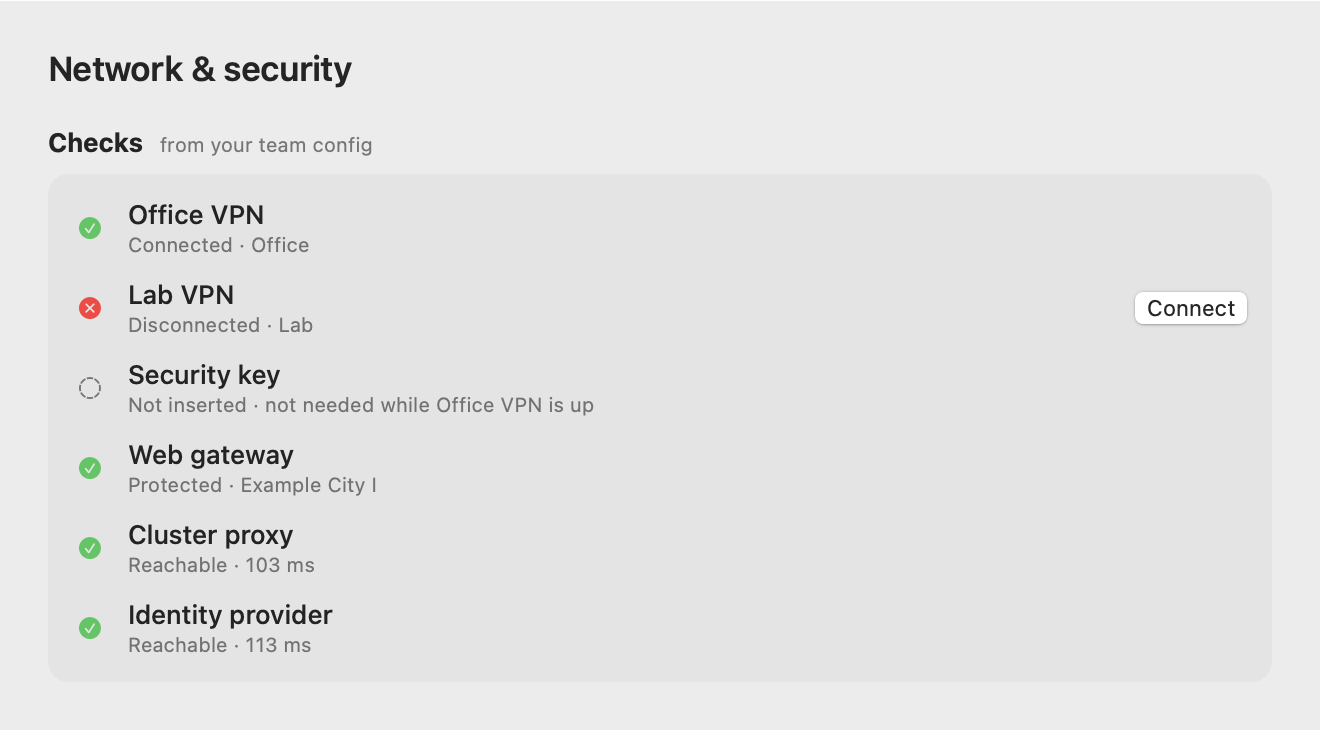
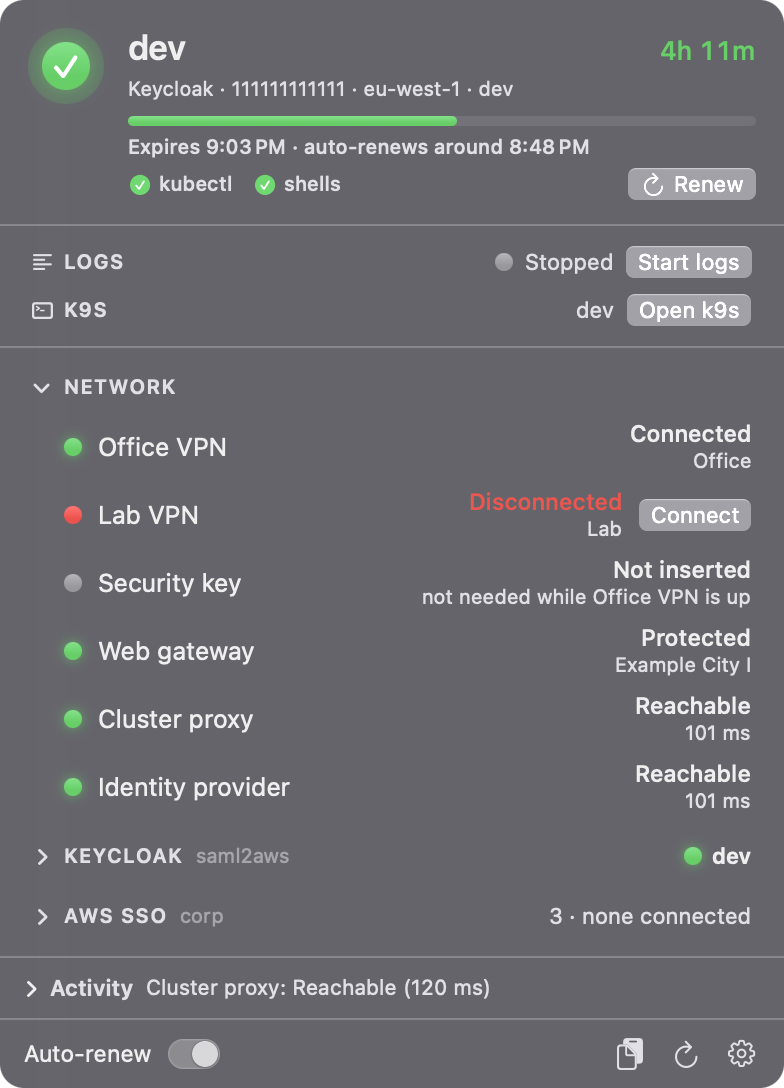
The VPNs, gateway and endpoints in these screenshots are made up.
Snippets
The clipboard button in the panel's footer opens a drawer of pinned text: the commands you keep typing. Click one to copy it, then paste with ⌘V.
- Copy a command anywhere, then Pin clipboard. The editor opens.
- Select the part that changes (a namespace, a pod, a tag) and click Make variable. It suggests a name from the command (
-n web→{namespace}) and keeps what you selected as the default. - Copying it now asks for the values, starting from the last ones you used.
⏎copies and your terminal stays in front.
Snippets stay on your Mac (~/.config/assume-keycloaker/snippets.json, readable by you only). Secrets copied from a password manager can't be pinned.
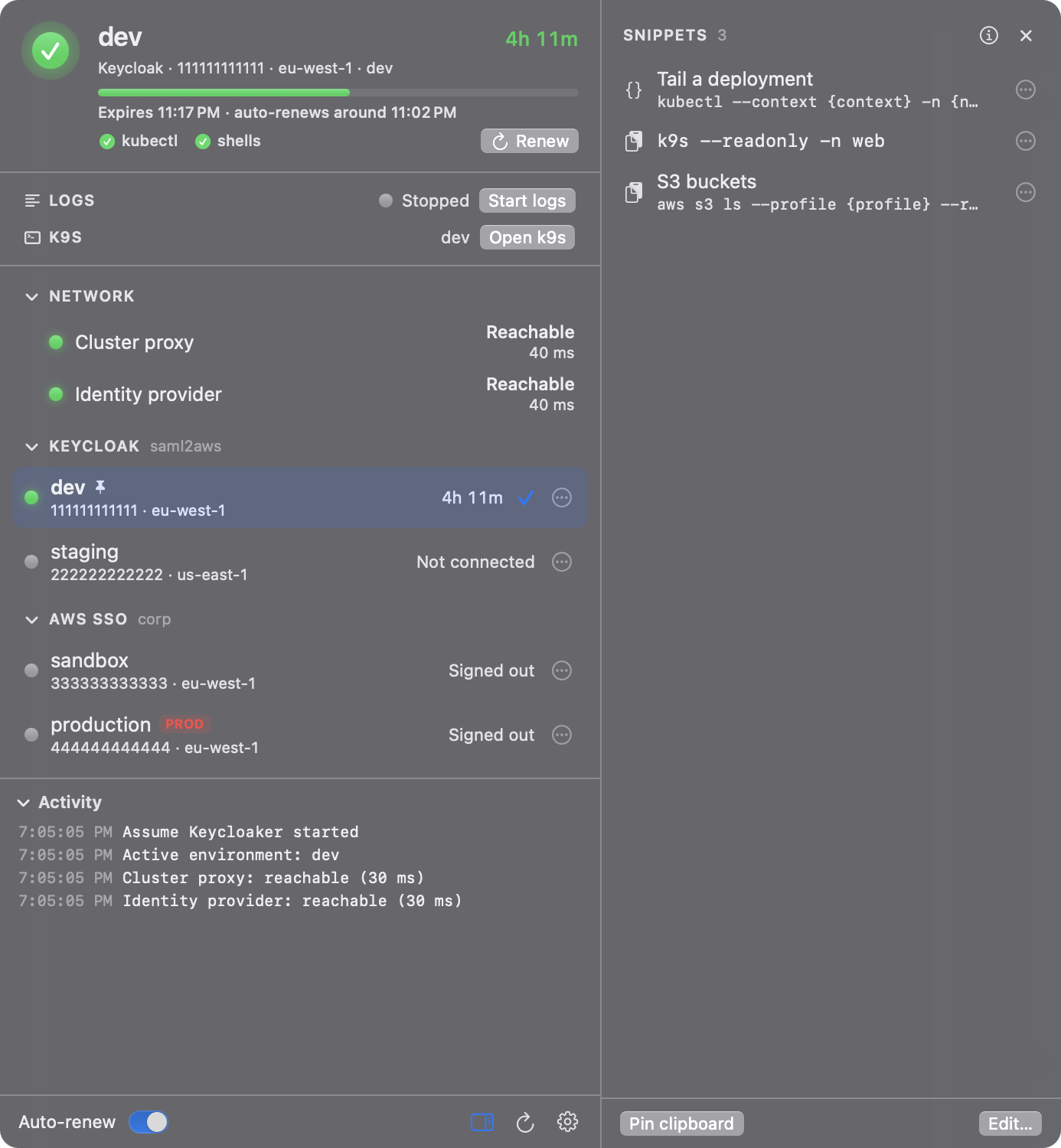
{namespace}, then open the drawer from the panel and copy: the prompt asks for the namespace.Fill-ins: filled from the active environment, never asked for
| {env} | the active environment, as named in the app |
| {profile} | its AWS profile (AWS_PROFILE) |
| {region} | its AWS region |
| {cluster} | its EKS cluster name |
| {account} | its AWS account ID |
| {context} | its kubectl context (the cluster ARN) |
Other braces, like kubectl jsonpath, are left alone. The ⓘ in the drawer explains all this inside the app.
Port forwarding
Reach something inside a cluster from your Mac: a service's web UI, an API, a database. The app runs kubectl port-forward for you, on the environment's context, and keeps it going.
- Click ⊕ next to Port forwarding (or an environment's ⋯ menu → Port forward…).
- Type part of a name. The results list every port of the deployments, stateful sets and services that match, in every namespace, with the container each belongs to.
- Pick one (
↑↓andReturn, or click). The namespace, target, port, a free port on your Mac and the name fill themselves in. - Add and Start.
- Click a forward to open it in your browser; it starts first if it isn't running. Database-type ports copy their address instead, and clicking the
localhost:portalways copies it. - Keep it running (the pin): starts whenever you're signed in to that environment and comes back after the VPN or a pod drops. Without it, a forward runs from when you start it until you stop it or quit.
- While the cluster can't be reached, a forward waits and says why (signed out, or which check is down).
- The right-click menu's Apps opens them too; hold
⌥to start or stop one.
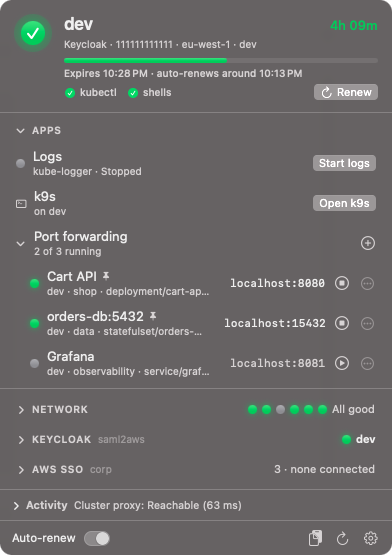
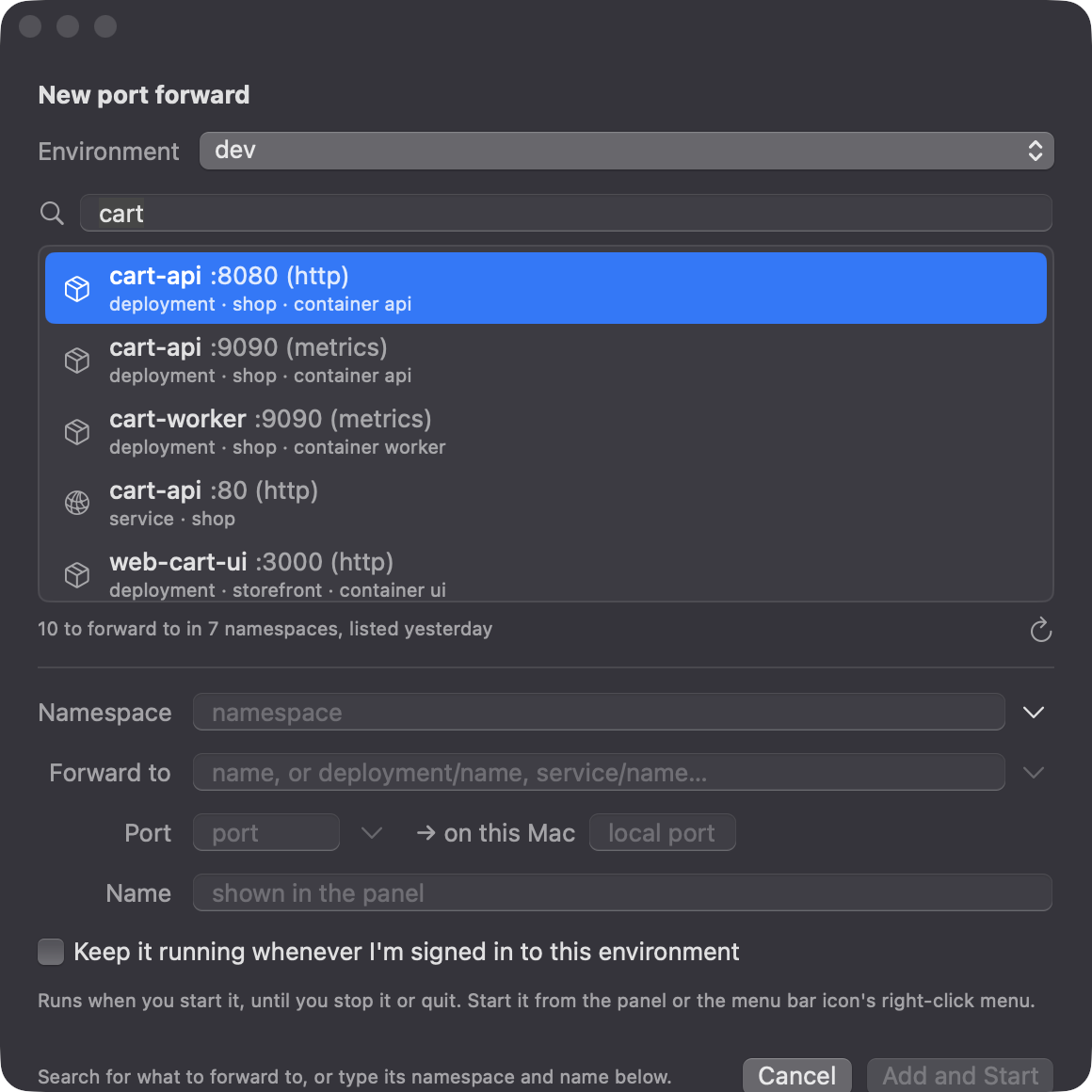
The search uses a listing of the cluster that the app keeps on your Mac, so it works even while the cluster can't be reached. The listing is made the first time you open the editor while the cluster can be reached, and refreshed every few hours (or with ↻).
Forwards listen on 127.0.0.1 only, and stop when the app quits. You can also type the names in: a bare name like cart-api is looked up in the listing.
The cluster, namespaces and services in these screenshots are made up.
Your own environments
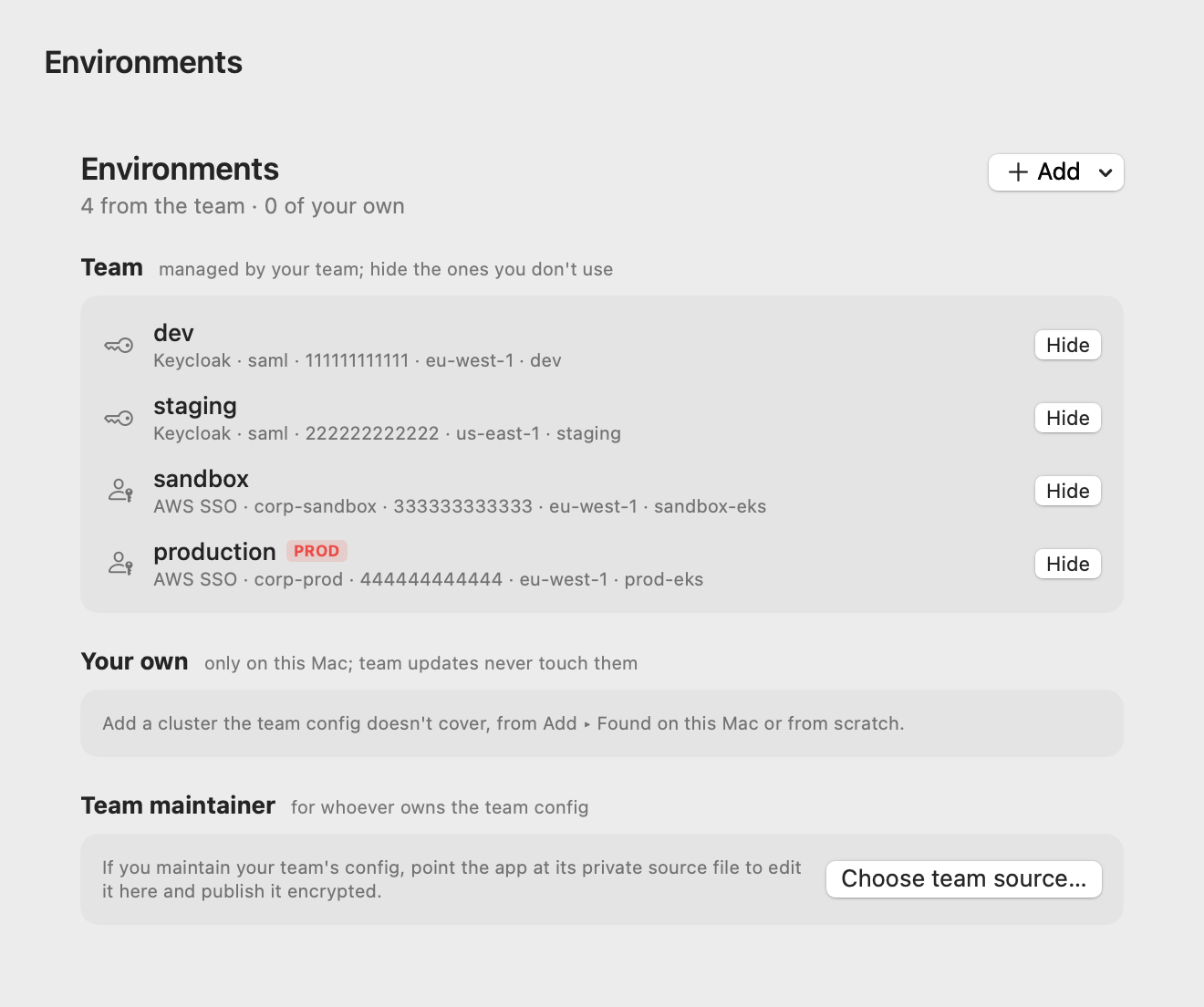
Settings → Environments lists where each one comes from. Hide the team ones you don't use, and add clusters the team config doesn't cover: from scratch, or from Add ▸ Found on this Mac (your kube contexts and AWS SSO profiles), with List clusters to pick the EKS cluster.
Yours live in ~/.config/assume-keycloaker/personal.json, so team updates never touch them.
Invite someone
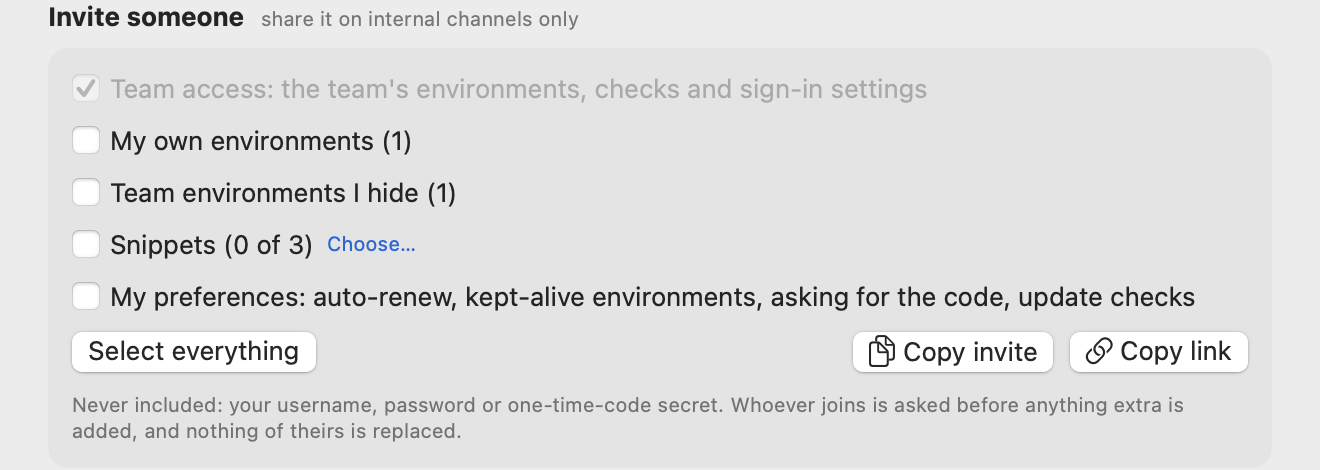
Settings → Team → Invite someone (also in the gear menu) copies an invite for a teammate. Team access is always in it; tick what else goes along: your own environments, the team environments you hide, snippets (pick which), and your preferences: auto-renew, kept-alive environments, asking for the code, update checks.
- Copy invite gives the code; Copy link gives an
assume-keycloaker://link that opens the app. - The extras travel inside the invite, encrypted with your team's key. Snippets go without your recent values.
- Never included: your username, password or one-time-code secret.
Share invites on internal channels only: they open your team's config.
Updates
A few seconds after it starts, and then every hour, the app checks its Homebrew tap. A newer version installs itself (or shows an Update button, if you turned that off): the app quits, runs brew upgrade --cask assume-keycloaker and reopens, and your sessions carry on. To update by hand:
brew upgrade --cask assume-keycloakerTerminals (optional)
Settings → General → Add to ~/.zshrc makes every prompt pick up AWS_PROFILE, AWS_REGION and KEYCLOAKER_ENV of the active environment. kubectl follows without it.
keycloaker_env      # what this terminal points at
keycloaker_pin      # stop following the app in this terminal
keycloaker_unpin    # follow it again
Files
| Path | Purpose |
|---|---|
| ~/.config/assume-keycloaker/config.json | The team config (from the invite). |
| ~/.config/assume-keycloaker/personal.json | Your own and hidden environments. |
| ~/.config/assume-keycloaker/snippets.json | Your snippets and their recent values. |
| ~/.config/assume-keycloaker/forwards.json | Your port forwards. |
| ~/.config/assume-keycloaker/clusters.json | What each cluster had to forward to, as last listed. |
| ~/.config/assume-keycloaker/current.env | The active environment, read by the optional shell hook. |
| ~/Library/Logs/AssumeKeycloaker/ | Activity, update and kube-logger logs (no secrets). |
| login keychain: Assume Keycloaker: … | Sign-in password, authenticator secret, team config key. |
Troubleshooting
- A session keeps failing to renew.
- Expand Activity at the bottom of the panel to see why. Check Settings → Account & MFA: the password and authenticator secret should be green. After three failed attempts the app stops retrying and notifies you; click Renew to try again.
- A network check is red.
- The session needs a network that isn't reachable right now: connect the way your team usually does. The checks re-run on their own when the network changes, or with the refresh button in the footer.
- Open k9s isn't there.
- It only shows while k9s can work: k9s installed, signed in, kubectl on the environment's context, and the network checks green.
- A port forward says it's waiting.
- It runs only while its environment can reach the cluster: sign in, and check the Network section. The row says what it's waiting for, and the forward starts by itself once that's fixed. A red row shows kubectl's error, e.g. the port on your Mac is already taken.
- Homebrew can't find assume-cloaker.
- The app was renamed in 0.2. Reinstall it under the new name:
brew uninstall --cask assume-cloaker && brew install --cask gtalmor/tap/assume-keycloaker. Your settings carry over.
Source
The source is private. Ask Gur if you'd like to contribute.